Канбан-доска SimpleOne способствует организации работы по принципу вытягивающего производства. В ней реализованы ключевые понятия подхода Канбан: WIP-лимиты, парные статусы и классы обслуживания, все вместе обеспечивающие слаженную работу команды, минимизацию ошибок и качественный конечный продукт или услугу. Использование такой канбан-доски приближает процессы компании к максимальному соответствию методологии Канбан и принципам бережливого производства.
Канбан-доска легко и эффективно интегрируется в работу компаний. Основываясь на принципе вытягивающего производства, доска позволяет координировать работу команд и их текущую нагрузку. Карточки задач передвигаются по доске при смене статуса задачи слева направо, что исключает их перевод в следующий статус, если не все условия или связанные задачи были выполнены. При этом на каждый столбец доски установлен отдельный WIP-лимит, который позволяет не перегружать сотрудников количеством текущих задач.

Канбан-доска vs Доска задач
В отличие от уже имеющейся на платформе доски задач и других похожих продуктов на рынке, карточки перемещаются по канбан-доске самостоятельно при смене статуса задачи, подсвечиваются достигнутые лимиты карточек в колонках и областях, а также отражается информация о заблокированных для перемещения дальше карточках, если они содержат дополнительные условия или ограничения.
Множество настроек канбан-доски позволяют определять её оптимальный для команды вид, создавать необходимое количество столбцов и объединять их в области, настраивать содержание карточек, а также настраивать условия их фильтрации и сортировки.
Доска задач не имеет этих настроек, а перемещение карточек осуществляется самими сотрудниками и допускает движение по доске в любую сторону, что является нарушением принципов Канбана и может стать причиной недостаточного качества проделанной работы.
Где хранится и как настроить доступ
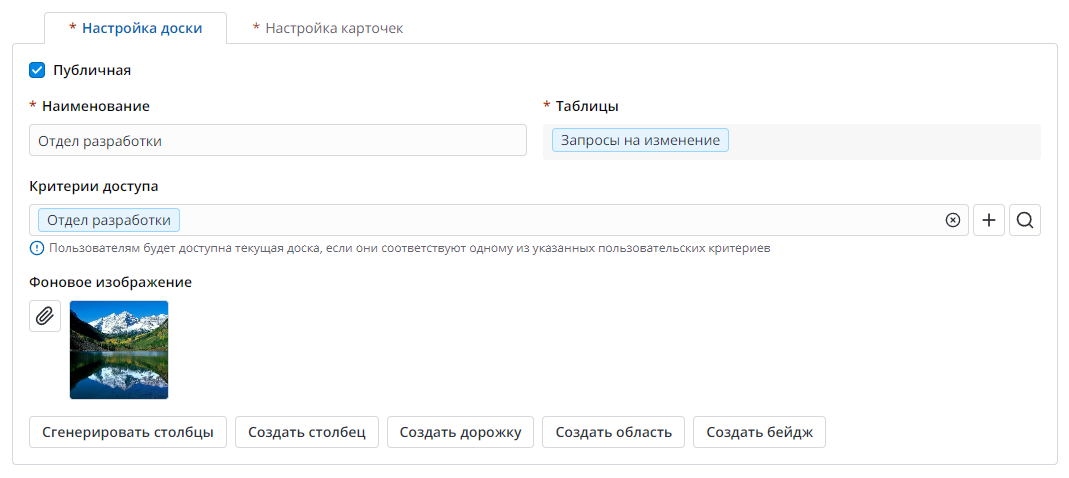
Все канбан-доски хранятся в виде записей в отдельной таблице Канбан-доски/Kanban board. Доски становятся доступными к просмотру другим пользователям только после того, как они будут опубликованы — отмечены флажком Публичная/Public на форме канбан-доски во вкладке Настройка доски/Board configuration. При создании каждой канбан-доски в целях безопасности можно настроить Критерии доступа/Access criteria, если критерии доступа не заданы, то доску смогут просматривать все пользователи.
Настройка внешнего вида доски
Смотрите полное видео по настройке канбан-доски на нашем канале.
Настройка доски
Для удобства работы с карточками, обязательные для отображения поля уже предзаполнены системой — Заголовок/Title и Ответственный/Responsible person, которые берутся из самих записей, их можно редактировать при необходимости.
Также на форме настройки отображения карточек добавлена возможность определить Блокирующее поле/Blocking field. Это могут быть любые поля типа True/False, например, чекбоксы, означающие, что выполнение задачи имеет какие-либо дополнительные условия, например, связанные дефекты. В этом случае на карточке задачи будет отображаться иконка замка [image].
Для того чтобы отобразить отсчитанное время на карточках, например, длительность нахождения в текущем статусе, укажите соответствующую колонку типа Date/Time в Поле времени/ Time field.
Фильтрация и сортировка по атрибутам осуществляется через настройку Условий фильтрации/ Filter condition. Это позволяет отображать карточки задач, например, только определенной команды и располагать их в необходимом порядке на доске.
Дизайн и управление
На форме канбан-доски есть кнопки, позволяющие оптимизировать внешний вид доски и добавить её в Избранное для быстрого доступа на платформе.
Для перехода в настройки канбан-доски нажмите на кнопку [image] в верхнем правом углу. Там же находится чекбокс Фиксировать ширину столбцов/Fix column width для выравнивания ширины колонок для удобного чтения карточек. Если чекбокс не отмечен, колонки будут выровнены под ширину окна.
Слева рядом с названием доски есть кнопка [image] для быстрого добавления таблицы в меню Избранное/Favourites.
Столбцы и области меняют свой цвет в зависимости от их наполненности и сигнализируют о достигнутом WIP-лимите или его превышении. Пользователям, в свою очередь, доступны следующие настройки внешнего вида канбан-доски:
- выбор цвета бейджей на карточках задач,
- возможность установки изображения на задний фон канбан-доски.
Мы рады завершению разработки первой версии канбан-доски. В документации вы найдёте всю необходимую информацию по её настройке и использованию.
С уважением,
Команда SimpleOne